Layered markup
Every annotation stays selectable as its own layer, so you can move it, resize it, hide it, lock it, or reorder it without starting over.
Image Annotator opens any screenshot or still image as a layered markup canvas. Add arrows, boxes, text, step numbers, highlights, freehand notes, blur, pixelation, or redaction, then copy, save, beautify, or pin the final image without losing the original.
Start the 14-day trial in the app. No payment method is required to try Foldout.
Use Foldout only with files and content you own or have permission to process.
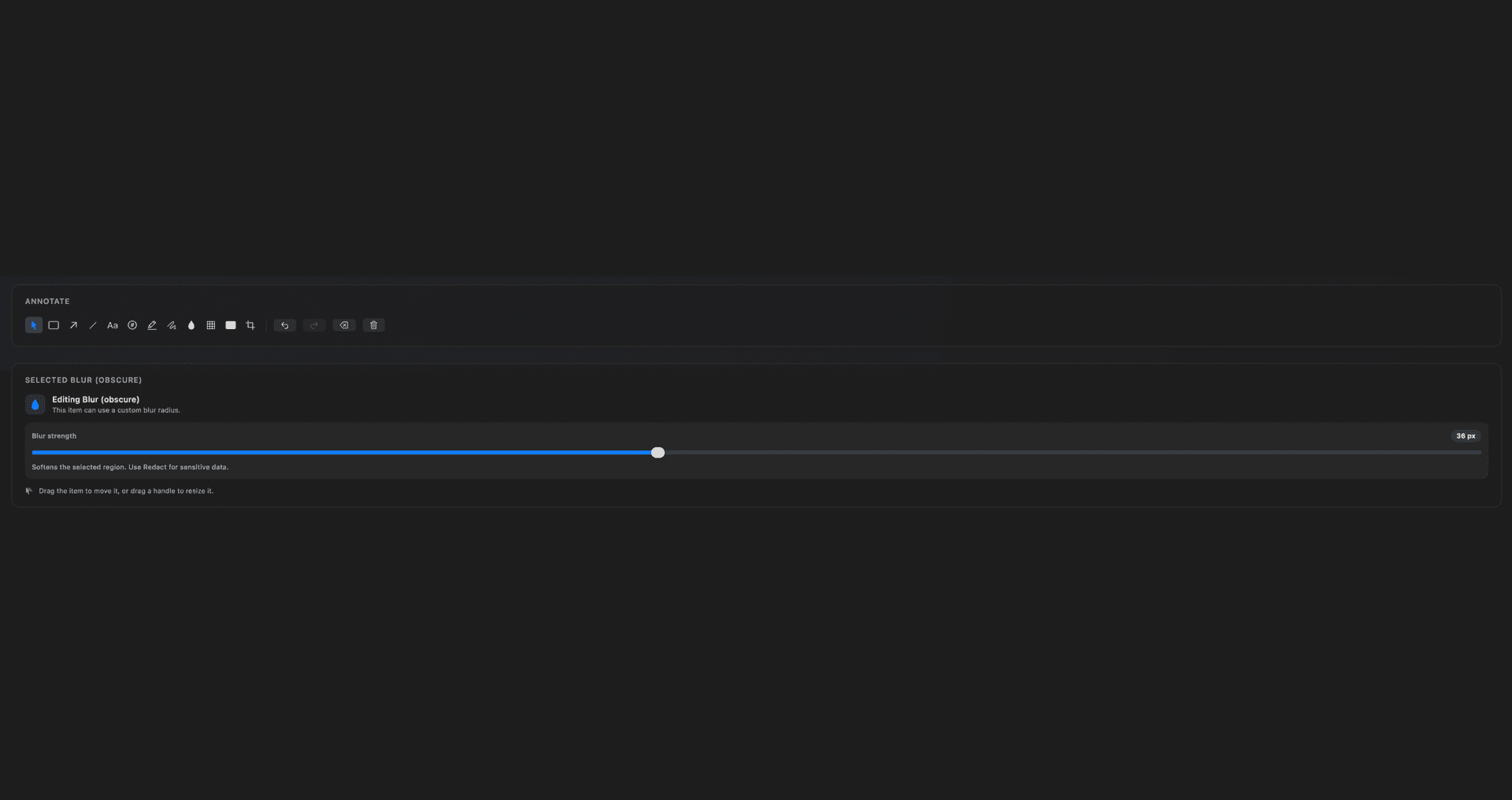
Annotate with arrows, boxes, lines, text, step markers, highlights, and pen strokes.
Blur, pixelate, or redact sensitive regions before sharing.
Use layers to select, reorder, hide, lock, duplicate, or delete annotations.
Copy, save, beautify, or pin the annotated result.
Concrete features, inputs, and workflow details for this tool.
Every annotation stays selectable as its own layer, so you can move it, resize it, hide it, lock it, or reorder it without starting over.
Blur, pixelate, and redaction tools preview the final result directly on the canvas, so you know exactly what will be shared.
Copy the finished image, save a PNG, beautify it for a polished backdrop, or pin it above other windows while you work.
Open an image, paste one from the clipboard, drag one in, or send a capture from Screen Capture.
Add arrows, text, highlights, blur, pixelation, redaction, or freehand notes.
Use the layer panel to hide, lock, reorder, duplicate, or delete annotations.
Copy, save, beautify, or pin the final image.
Yes. Capture something, then choose Annotate from the floating tray to open it here.
Yes. The layer panel lets you hide, lock, reorder, duplicate, and delete annotation layers.