One draft, many PDF jobs
Start with a document or a set of files, then move between organize, fill and sign, redaction, stamping, inspect, and export modes without saving intermediate copies.
PDF Studio is Foldout's unified PDF workspace: bring in PDFs and images, organize the page deck, add signatures and marks, prepare redactions, stamp watermarks or page numbers, inspect the document, and export only when the draft is ready.
Start the 14-day trial in the app. No payment method is required to try Foldout.
Use Foldout only with files and content you own or have permission to process.
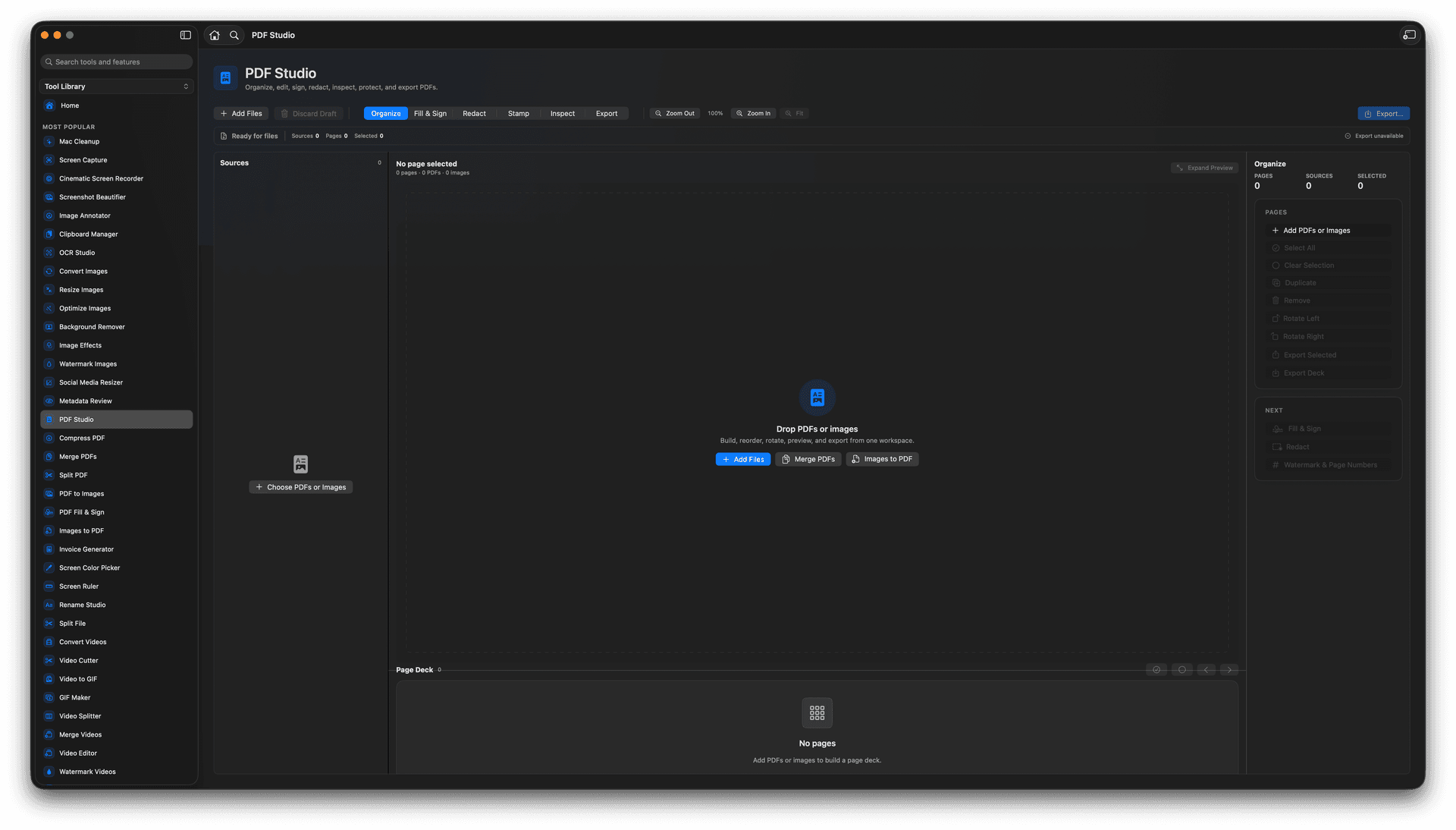
Keep the page deck, preview, and inspector visible while you switch modes.
Merge PDFs by adding sources, then reorder, rotate, duplicate, remove, or export selected pages.
Place text, dates, checkmarks, X marks, and signatures directly on the current page.
Prepare redactions, watermarks, page numbers, compression, passwords, metadata stripping, and final export from the same draft.
Concrete features, inputs, and workflow details for this tool.
Start with a document or a set of files, then move between organize, fill and sign, redaction, stamping, inspect, and export modes without saving intermediate copies.
The page deck, canvas, and inspector remain in place, so reordering pages, checking the preview, and editing the current page all feel like one editor instead of a chain of separate tools.
Foldout keeps the draft in memory until you choose the final output, with options for full PDFs, selected pages, images, compression, password protection, and metadata stripping.
Open PDF Studio and add PDFs or images.
Use the page deck to reorder, rotate, duplicate, remove, or select pages.
Switch modes to sign, mark, redact, stamp, inspect, or prepare export settings.
Preview the draft, then export the final PDF or selected pages.
No. Edits stay in the draft until you export a new file.
Yes. The focused PDF tools remain available for quick one-step jobs, while PDF Studio is the best starting point for multi-step PDF work.